Back to dashboard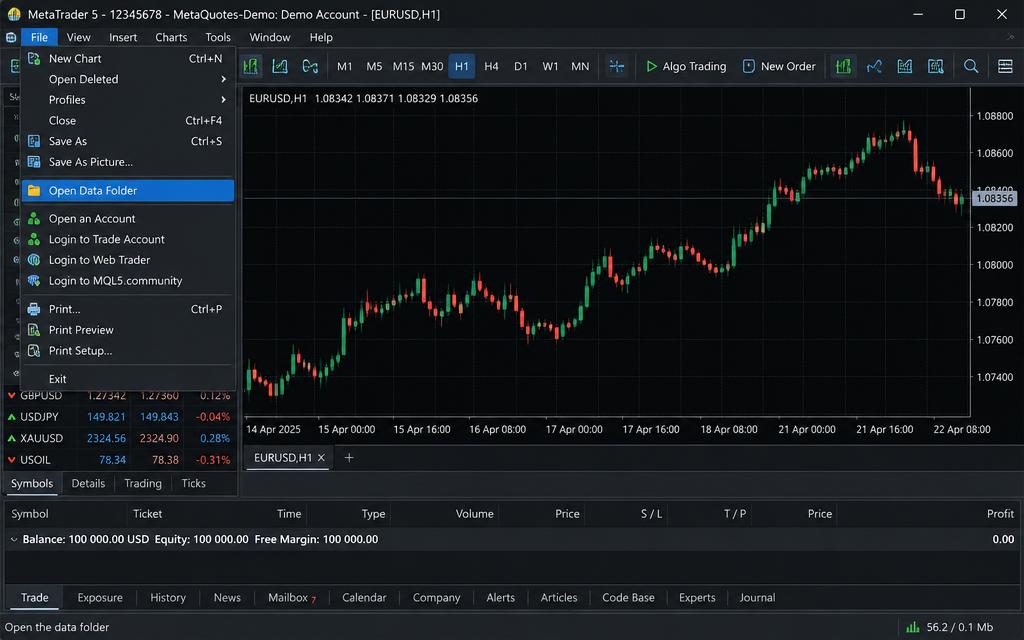
Connect MetaTrader 5 — picture guide
Follow these steps and the live MT5 gold chart on the Gold Normal desk will show your own broker's prices, updating about every half second.
1
Get your token and the helper
- Sign in at aurumdesk.co.uk and open your dashboard.
- Find the "Copy trade bot · MetaTrader 5" box and open "1. Connect MT5".
- Press Show, then Copy token — keep it somewhere safe.
- On the same panel, press Download the helper program v1.54. You must use v1.35 or newer (v1.54 only copies gold on the XAUUSD symbol, never GOLD247; v1.53 sends the gold price about 4 times a second with exact tick times; v1.52 sizes Gold Scalping copies to risk 0.10% of your equity and stops them for the day after a 1.5% loss; v1.51 keeps your original stop and closes copies when the robot closes; v1.49 places the break-even stop 5% of the stop distance behind entry; v1.47 adds the Gold V2 research feed, which only uploads prices and never opens trades; v1.44 moves your stop to break-even at your own fill price, closes if price is already past the new stop; v1.43 copies signals only within 1 minute of being sent and always opens at the current market price, whatever the gap from the signal entry) — older versions trade but never send the gold and Bitcoin charts.
2
Open the MT5 data folder
- In MetaTrader 5, click File in the top-left menu.
- Click Open Data Folder.
- A Windows folder opens — this is where MT5 keeps its files.
3
Put the helper in the Experts folder
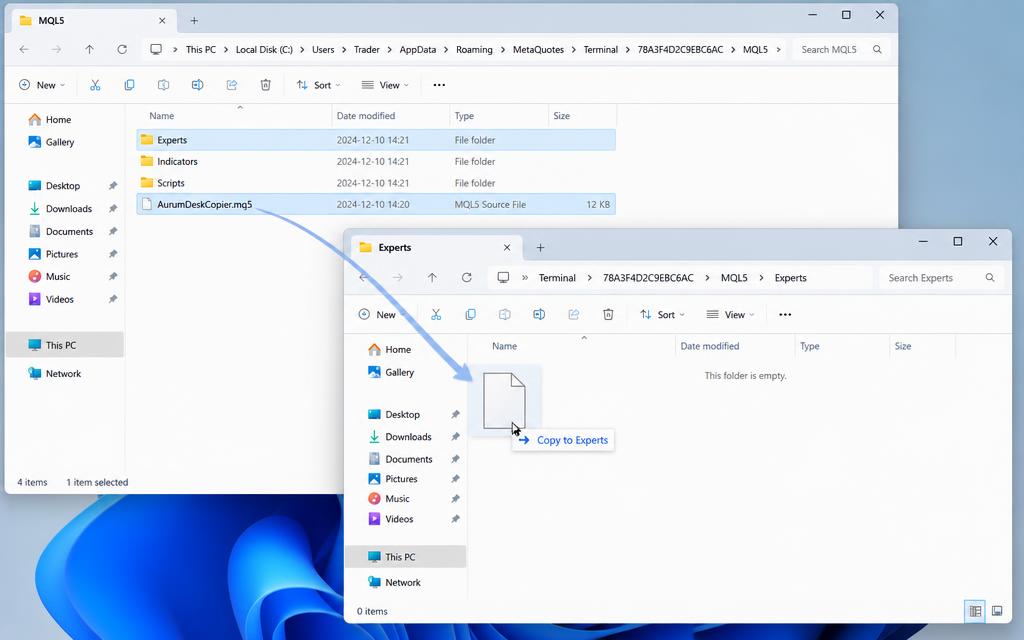
- In the folder that opened, double-click MQL5, then Experts.
- Copy the downloaded AurumDeskCopier.mq5 file into the Experts folder.
- If an older AurumDeskCopier file is already there, replace it.
4
Allow MT5 to talk to the website
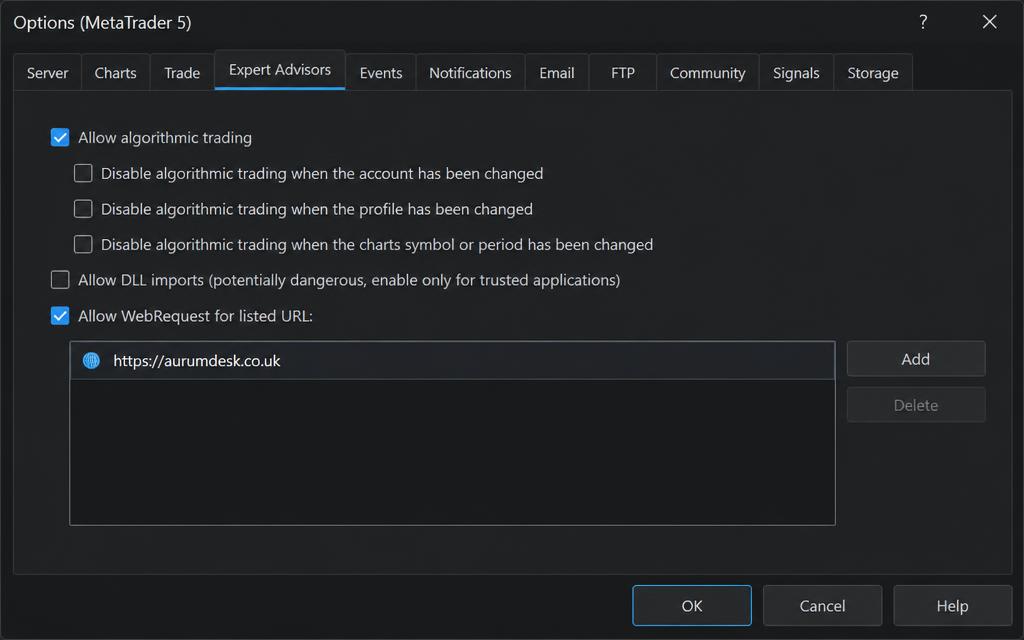
- In MT5, go to Tools → Options → Expert Advisors.
- Tick "Allow algorithmic trading".
- Tick "Allow WebRequest for listed URL".
- Press Add and type exactly: https://aurumdesk.co.uk
- Press OK.
5
Attach the helper and paste your token
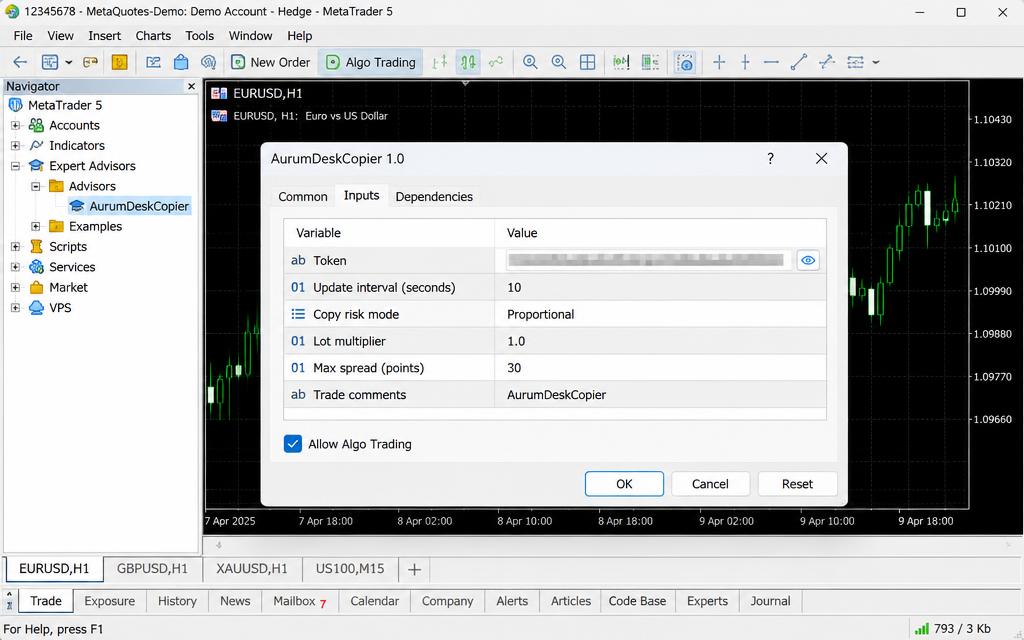
- In the Navigator panel on the left, open Expert Advisors and find AurumDeskCopier (press F5 to refresh if you don't see it).
- Drag it onto any chart.
- In the settings window, open the Inputs tab and paste your token into the Token box.
- Make sure "Broker gold symbol" matches your broker's gold name (XAUUSD, XAUUSD.r, GOLD…). If it's wrong, the chart stays blank.
- Tick "Allow Algo Trading" and press OK.
- Finally, press the Algo Trading button in MT5's top toolbar so it turns green.
6
Keep MT5 running
- The chart and copy trading only work while MT5 stays open — on your computer or on a VPS.
- If MT5 closes, the chart shows "Feed paused" until you open it again.
How to know it worked
- Your dashboard connection status turns green within about 10 seconds of the helper running.
- Open the Gold Normal desk — under the TradingView chart there's a second chart labelled "MetaTrader 5 · XAUUSD · M5 · Bid".
- When it says "Connected · live updates" in green, the candles match your MT5 exactly.
If the chart doesn't appear
- "Waiting for MT5 candles" or "Feed paused" means the helper isn't uploading.
- Check the token was pasted correctly (no spaces at the start or end).
- Check the broker gold symbol name matches your broker's.
- Check the WebRequest URL https://aurumdesk.co.uk was added and Algo Trading is green.
- Make sure you downloaded helper v1.35 or newer — older versions can't send the charts.